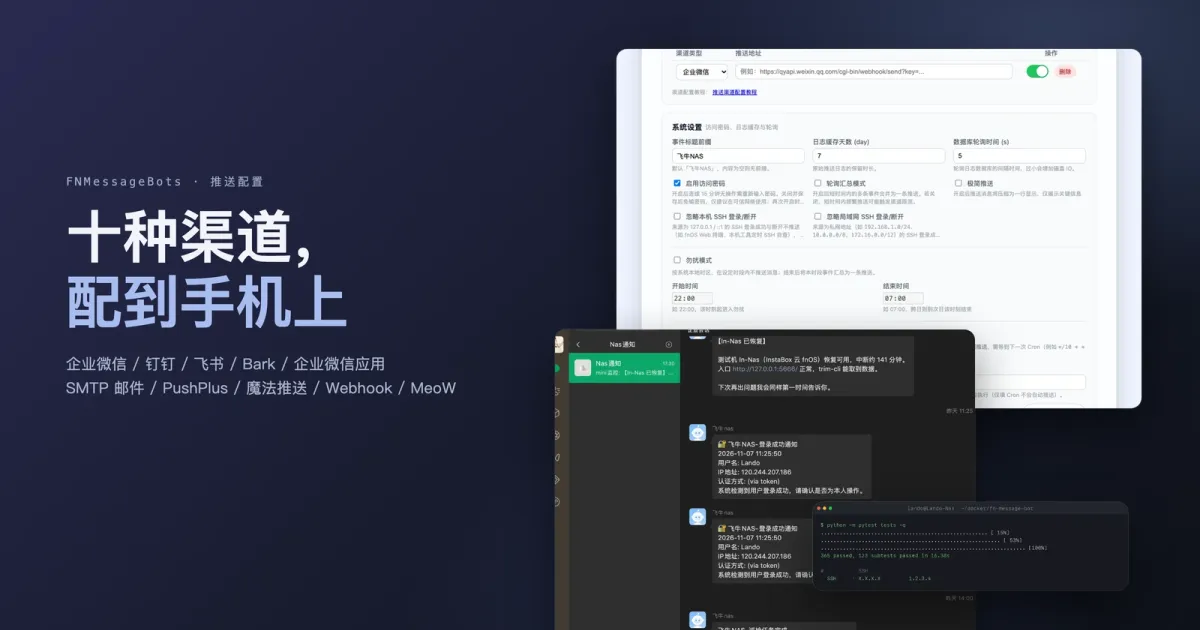
Installing the bot is step one. What decides whether it’s any good is where the message actually lands — in a WeChat group, on your lock screen, or in a webhook you wrote yourself.
It supports ten channels and each one has its own personality. DingTalk wants a keyword. The WeCom app wants your IP allowlisted. Email wants an app password, not your login password. MagicPush will 403 you if the base URL is wrong. This post is the side-by-side manual for all of it, pulled from the docs/channels/ files in the repo, merged and extended with the traps and the troubleshooting.
Pick a channel by where you read messages
| Channel | Where it lands | What it needs | Who it’s for |
|---|---|---|---|
| WeCom (group bot) | A WeChat group message | A WeCom org plus a group bot webhook | Default pick. You see it right in WeChat |
| WeCom app | WeChat / WeCom, addressed to a person | A self-built app plus trusted IPs | You want to target one person or department |
| DingTalk | A DingTalk group | Group bot plus a custom keyword | Your team lives in DingTalk |
| Feishu | A Feishu group | Group bot webhook | Your team lives in Feishu |
| Bark | An iOS notification (lock screen banner) | Bark app plus your device URL | The fastest option on iOS |
| PushPlus | A WeChat template message | A token | You already have a PushPlus account |
| SMTP email | Your inbox | An SMTP server plus an app password | You want an archive, forwarding, or no phone push |
| MagicPush | Whatever you point it at | MagicPush deployed, base URL, token | You want one place to manage many devices and channels |
| Generic webhook | Any HTTP service | A URL that accepts a POST | ntfy, Gotify, Home Assistant, n8n, your own thing |
| MeoW | A phone notification | A nickname registered in the MeoW app | Android or iOS with the least possible setup |
My advice is start with two: WeCom (in a group, so you can scroll back) and Bark (on the lock screen, so you see it immediately). One covers “I’ll check later”, the other covers “tell me now”. Send important things to both — there’s no conflict, channels deliver in parallel.
Three ways to configure it, and the priority order
Any channel can be set up three ways:
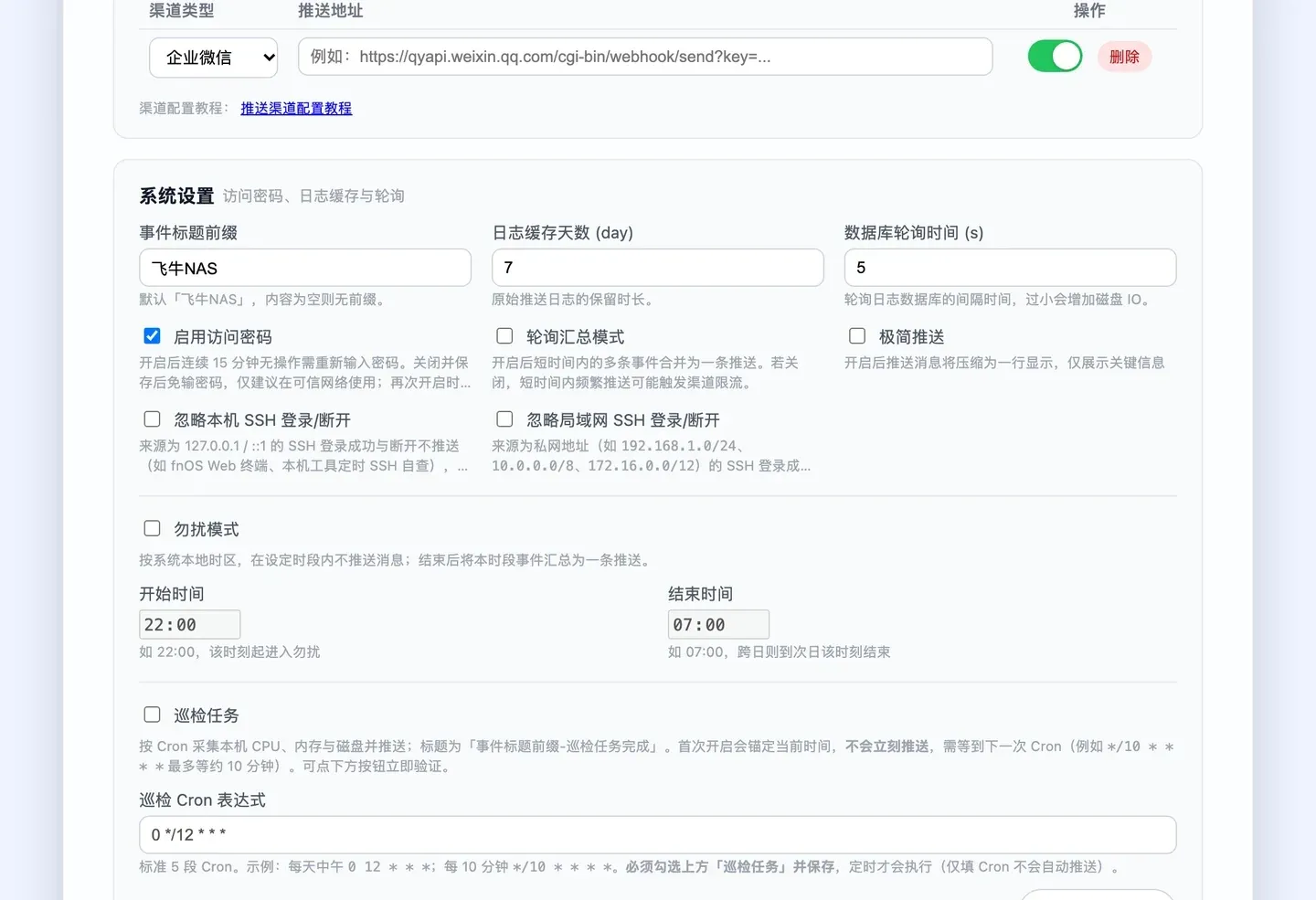
- The web config page: add channel → pick the type → paste the URL or JSON → save → hit “Send test” at the bottom of the page.
config/config.json: write the fields directly, e.g.wechat_webhook_url,smtp_params,webhook_params.- Environment variables: e.g.
WECHAT_WEBHOOK_URL,SMTP_PARAMS,WEBHOOK_PARAMS.
Priority: environment variables > config.json / the web page. If a key came from the environment, the config reader skips it outright. So “I changed it in the UI and nothing happened” is by design, not a bug. When a config change doesn’t take, check this first.
Multiple sets of the same channel: pushplus_params, smtp_params, wecom_app_params, webhook_params and meow_params all accept several entries separated by a pipe |, for example:
{"token":"aaa"}|{"token":"bbb"}⚠️ If the JSON itself needs a | (the WeCom app’s to_user, say), write \u007c or it’ll be split as a separator. Saving through the web page handles this for you.
WeCom group bot: bind an admin WeChat account
This is where most people get stuck, and the cause isn’t the tool — it’s WeCom’s signup flow:
- Go to work.weixin.qq.com and register an org (any name works, including a personal one);
- You have to bind an admin WeChat account, otherwise messages won’t reach you in WeChat later;
- In the admin console, under My Enterprise → WeChat Plugin (我的企业 → 微信插件, the labels are Chinese even in the English UI), find the option that must stay unchecked — check it and you can only receive inside the WeCom app;
- Log into WeCom, open the default group →
...in the top right → message push → add bot → save, and you have your webhook.
The string you get back, https://qyapi.weixin.qq.com/cgi-bin/webhook/send?key=..., is a password. Anyone holding it can post into your group. Don’t screenshot it, don’t commit it to a public repo.
One limit worth knowing up front: a WeCom group bot takes 20 messages per minute. That’s exactly why a poll that reads dozens of events goes out as one summary — send them individually and the rate limiter silently drops them.
DingTalk: the keyword has to match your title prefix
DingTalk group bots have a security setting with four options. Custom keyword is the easy one, but the keyword isn’t free-form:
it has to equal the event title prefix in the app, which lives under system settings at the bottom of the config page and defaults to 飞牛NAS. DingTalk checks whether that string appears in the message body, and the title prefix gets prepended to every message title.
The symptom when they don’t match is unmistakable: DingTalk reports no error, the log says success, and the message never appears.
Two smaller traps:
- A DingTalk group needs at least two members. Invite someone, create the group, then remove them.
- If you switch to the signature option (加签) instead, set the security setting to signing — you can’t use it alongside the keyword.
Feishu: you can create a group alone, just don’t add outsiders
Feishu is more relaxed than DingTalk: one person can create a group. Group settings → group bots → add bot → custom bot → copy the webhook.
Two things to watch:
- On a personal account, don’t invite external people. It triggers cross-org restrictions and the bot may not be able to post.
- The security setting can be left empty, or you can use a keyword like DingTalk — and it has to match the event title prefix too.
Paste the Feishu webhook into the app, set the channel to Feishu, and you’re done.
WeCom app: the most capable, blocked on trusted IPs
If you don’t want messages in a group but addressed to a specific person, department or tag, use a self-built app:
- The corp ID is at the bottom of the My Enterprise page (我的企业) in the admin console;
- App management → self-built → create app, then note the AgentId and Secret (you have to read the Secret in the WeCom client);
- In the app’s details, add the recipients to its visible scope, otherwise nothing gets through;
- Configure trusted corporate IPs with the public IP your NAS goes out on.
Step 4 is the pain point. Without it the API returns:
60020 not allow to access from your ipAnd home broadband public IPs change, so what worked stops working. Two ways out:
- Put a server with a static IP in front as a reverse proxy to
https://qyapi.weixin.qq.com, then point the app’s API address at the proxy; - or accept it and come back to edit the IP whenever it changes.
Also, for apps created after June 2022, you usually have to set a trusted domain or a receiving URL before you can configure trusted IPs. Follow whatever the console asks for.
The config JSON looks like this:
{"corp_id": "ww1234567890abcdef", "corp_secret": "应用Secret", "agent_id": "1000002", "to_user": "@all"}If to_user, to_party and to_tag are all empty, it goes to @all — everyone inside the app’s visible scope.
Bark: one URL and it’s on your lock screen
Bark is the least work on iOS. Install the app, the home screen shows a URL that’s yours, paste it into the app and set the channel to Bark. Done.
Want nicer notifications? Put the {content} placeholder in the URL:
https://api.day.app/你的Key/这是我的标题/{content}
https://api.day.app/你的Key/{content}?icon=https://day.app/assets/images/avatar.jpg
The first line sets a custom title, the second a custom icon. {content} gets replaced with the message body. That placeholder is yours to add — leaving it out is fine.
SMTP email: an app password, not your login password
Email is the most commonly misconfigured channel, because everyone reaches for their mailbox password. SMTP wants an app password (sometimes called an authorization code).
Setup: turn on SMTP in your mail provider’s settings, generate the app password, and note the server and port.
{
  "server": "smtp.qq.com",
  "port": 465,
  "username": "yourname@qq.com",
  "password": "邮箱SMTP授权码",
  "from": "飞牛告警",
  "to": "receiver@example.com,backup@example.com"
}| Field | Required | Notes |
|---|---|---|
server | Yes | e.g. smtp.qq.com |
port | No | defaults to 465 |
username | Yes | usually the full address |
password | Yes | the app password, not the web login password |
to | Yes | several recipients separated by commas |
from | No | display name; without an @ it’s treated as a nickname and shown alongside the login address |
The port decides the encryption, there’s no separate switch:
465→ SMTP_SSL (implicit TLS);- anything else (
587usually) → plain connection, then STARTTLS.
Common providers:
| Provider | Server | Port |
|---|---|---|
| QQ Mail | smtp.qq.com | 465 / 587 |
| NetEase 163 | smtp.163.com | 465 / 587 |
| Outlook / Microsoft 365 | smtp.office365.com | 587 |
| Gmail | smtp.gmail.com | 587 (app password required) |
When mail won’t send, check in order: is the app password the current one → does the port match what the provider wants → has the provider restricted SMTP on your account.
MagicPush: don’t put the reverse-proxy domain in there
MagicPush is a self-hosted push aggregator: you configure your downstream channels in it (Bark, WeCom, email…), and the bot sends once to MagicPush, which fans out.
Two values to keep straight:
- Base URL: the service root, without
/api/push. On the same host, use the LAN address,http://192.168.1.10:818; - Access token: the token on the push endpoint under Interface Management (接口管理), not the JWT you log in with.
Three errors that come up constantly:
| What you see | Why |
|---|---|
HTTP 403 | The base URL is a reverse-proxy domain like https://xxx.fnos.net — the container loops out to the public domain and back in, and the proxy usually blocks it. Use LAN IP:port instead |
| Can’t connect | You used localhost / 127.0.0.1, which inside Docker means the container itself |
HTTP 400: 部分推送失败 | It did reach MagicPush, and one of its downstream channels failed. Go look in MagicPush |
Generic webhook: talk to anything
For platforms without a built-in channel — ntfy, Gotify, Server酱, Home Assistant, n8n, something you wrote — use the generic webhook. Any 2xx counts as success.
It sends POST + JSON by default, with a body of {"title": "标题", "content": "正文"}. If you need auth or specific fields, open the advanced options and set headers or a body template:
{
  "url": "https://example.com/hook",
  "method": "POST",
  "content_type": "json",
  "headers": "Authorization: Bearer xxx",
  "body": "{\"title\": \"{title}\", \"content\": \"{content}\"}"
}
Four placeholders:
| Placeholder | Contents |
|---|---|
{title} | The message title |
{content} | The message body |
{text} | Title plus body as one plain-text string |
{time} | Send time, YYYY-MM-DD HH:MM:SS |
Placeholders get escaped according to the content type — quotes and newlines escaped in JSON, URL-encoded in forms and URLs, substituted as-is in plain text. Which means the template itself has to be valid JSON, or the request never leaves.
Three ready-made examples:
- ntfy: URL
https://ntfy.sh/你的主题, method POST, plain text, body{text}; - Gotify: URL
https://gotify.example.com/message?token=xxx, JSON body{"title": "{title}", "message": "{content}"}; - GET push: URL
https://example.com/push?msg={text}, method GET (no body).
One thing was done for safety: the runtime log doesn’t print query parameters, and when the config page echoes back a URL, tokens and keys in the address plus auth headers like Authorization, Token and Cookie come back masked — and the masked values are restored on save if you didn’t touch them. So screenshotting the config page is safe.
MeoW: a nickname is enough, but get it right
MeoW is a phone push app, and it needs exactly one thing: a nickname.
{"nickname": "你的昵称", "url": "http://192.168.1.10:5666"}url is optional; set it and tapping the notification opens it, say your NAS home page.
Three hard limits you need to know about:
- Free tier rate limits: 1 per 3 seconds, 15 per minute, 60 per hour, 1000 per day. Over that you get
429; - Pushing to an unregistered nickname gets your IP banned cumulatively: three pushes to unknown nicknames in one day from the same IP and you’re blocked. So when the bot sees “nickname not registered” it stops pushing to that nickname automatically, and resumes once you fix the nickname and save;
- Don’t push from a shared public egress IP — that’s how you get flagged as an attack.
When events are busy, turn on poll-batch summary mode, or you’ll hit the rate limit fast.
Don’t let your own tool annoy you
Once the channels work, the thing to tune isn’t the channel — it’s the pace. Four switches:
| Switch | What it does | How I set it |
|---|---|---|
| Event selection | Only push what you care about | Turn on login failures / disk problems / container crashes / UPS first, leave the rest off |
| Poll-batch summary | Many events in a short window become one | On when events are busy, or when the channel has rate limits (MeoW, email) |
| Minimal push | Everything squeezed into one line | On while you only care “is something wrong”, off when you want detail |
| Do not disturb | Nothing during the window, one digest after | Defaults to 22:00–07:00, cross-midnight handled for you |
And one backstop underneath: a 300-second dedupe window — the same event goes out once per 5 minutes. A disk waking up repeatedly, SSH brute-force attempts, all of that gets absorbed by this and by the 5-second merge window. Otherwise your phone really does get buzzed flat.
Troubleshooting table
When something doesn’t work, read this before you read the logs:
| Symptom | Likely cause | Fix |
|---|---|---|
| WeCom never notifies | Admin WeChat not bound, or the “receive in WeCom app only” option got checked | Go back to the WeCom group bot section and redo it |
| DingTalk logs success, no message | Custom keyword ≠ event title prefix | Set it to match title_prefix (default 飞牛NAS) |
| Feishu can’t send | External members in the group | Use an internal-only group |
60020 | WeCom app has no trusted IP | Add the public IP, or proxy through a static IP |
40001 / 40013 | Wrong corpid or Secret | Check that the Secret belongs to that AgentId |
81013 | Recipient outside the app’s visible scope | Add them to the visible scope |
Mail 535 / auth failed | Login password instead of app password | Generate a new app password |
| Mail times out | Port and encryption mode don’t match | 465 or 587, per the provider’s docs |
MagicPush 403 | Base URL is a *.fnos.net reverse proxy | Use LAN IP:port |
MagicPush 400 部分推送失败 | A downstream channel failed | Check MagicPush’s own logs |
MeoW 429 | Rate limited | Turn on poll-batch summary, or upgrade |
MeoW 404 | Nickname not registered or misspelled | Fix the nickname and save |
| Webhook does nothing | Template isn’t valid JSON | Validate the JSON locally first |
| Every channel silent | Environment variables overriding the config | Look for *_PARAMS and friends |
One last thing
Ten channels sounds like a lot. In practice you’ll use two or three. Get one working, click “Send test” until it’s green, then add the next — that’s much faster than configuring five and having no idea which step broke.
The “Send test” button at the bottom of the config page exists for exactly this: it reports each channel separately — which one succeeded, which one failed, and what came back.
Related reading:
- Install and deploy (Docker or App Center): FnMessageBots: get your NAS to message you first
- How it works internally (polling, dedupe, delivery and retry): The FnMessageBots project page
- The original per-channel docs:
docs/channels/